Content Includes:
Billing Actions
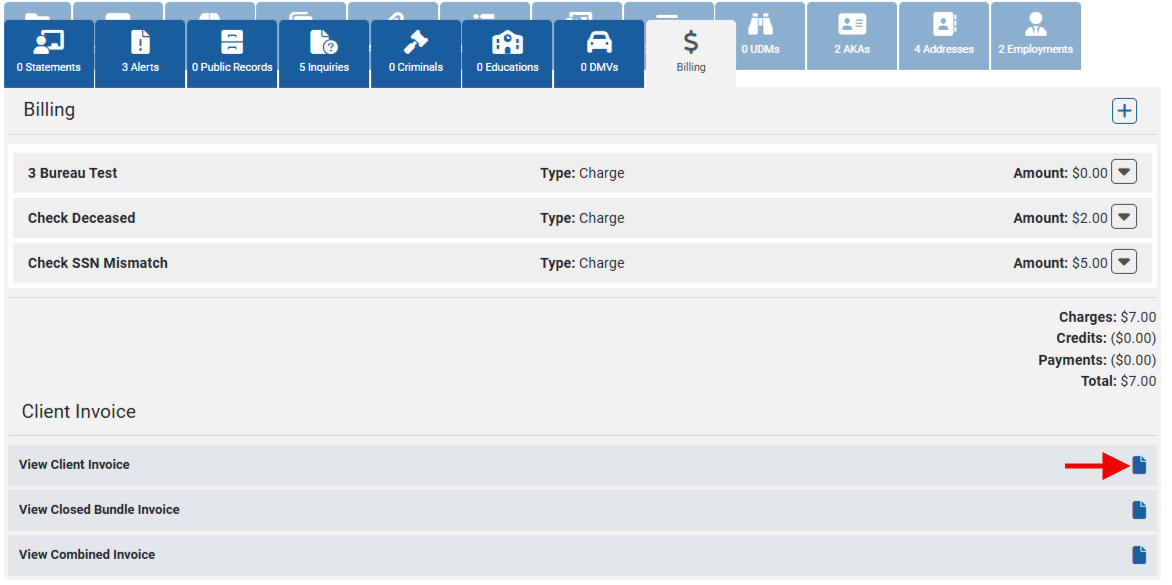
Access the Billing tab within a file to view and reconcile all billing items for this request. You can add charges, credits, and payments directly from the Billing tab.
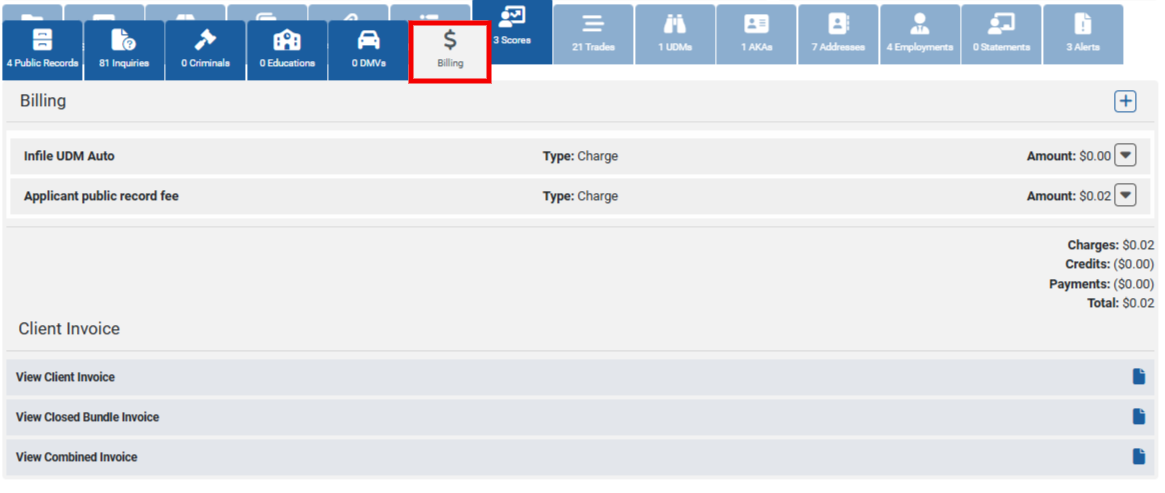
Expand via the arrow to the right, each billing item to view the detail for an individual entry.
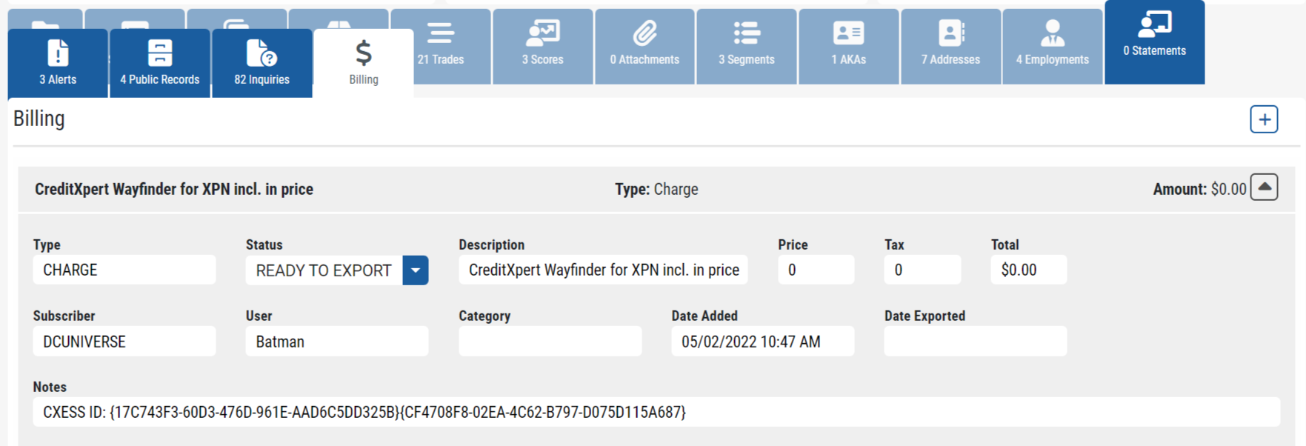
Click the plus sign at right to add a new Charge, Credit or Payment, then fill in the detail for this item and Save on the top of the page.

Apply Billing Descriptions
Users can apply Billing Descriptions via each billing line item. Expand the transaction. 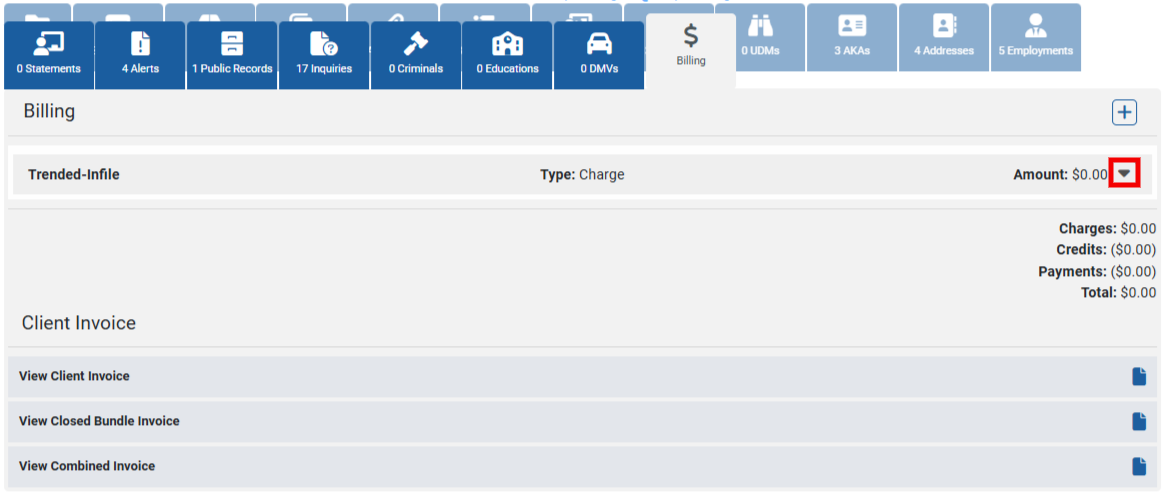
Find the Description field. If a Billing Description has already been assigned, this field will have a description already in place. The + sign will be present above the Description field if the currently applied Description has not been added to the default list of billing description options. Users can select the + to instantly add the displayed Description to the default list.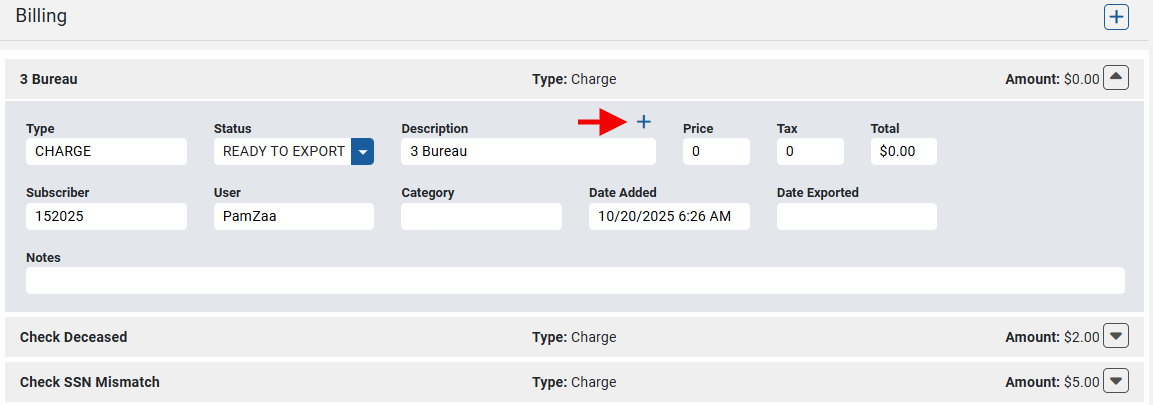 NOTE: when hovering over the + icon, a tooltip will show what the feature does.
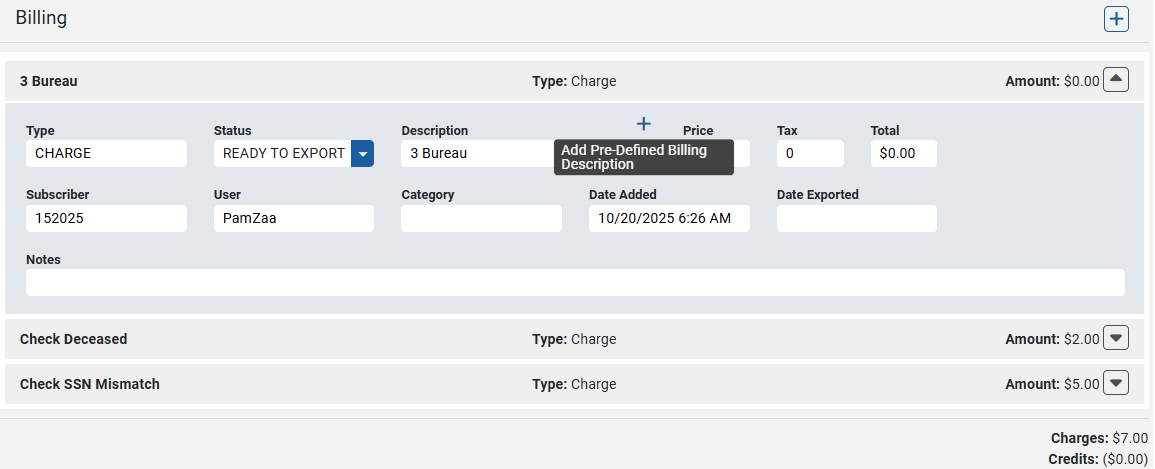
A notation will be displayed when the new Billing Description has been added.  If the Description needs to be updated, users can delete the current billing description. The user will be presented with all existing Billing Descriptions in a dropdown list.
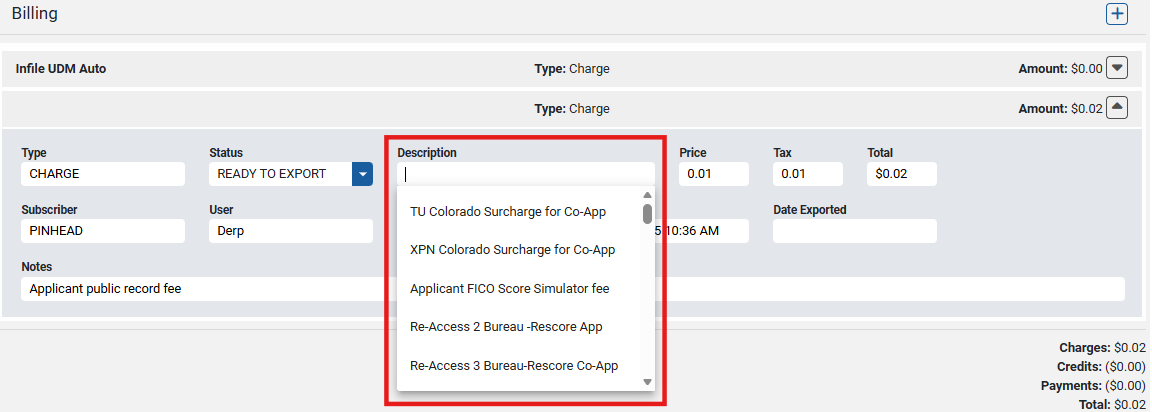
Select the appropriate one and SAVE at the top of the screen.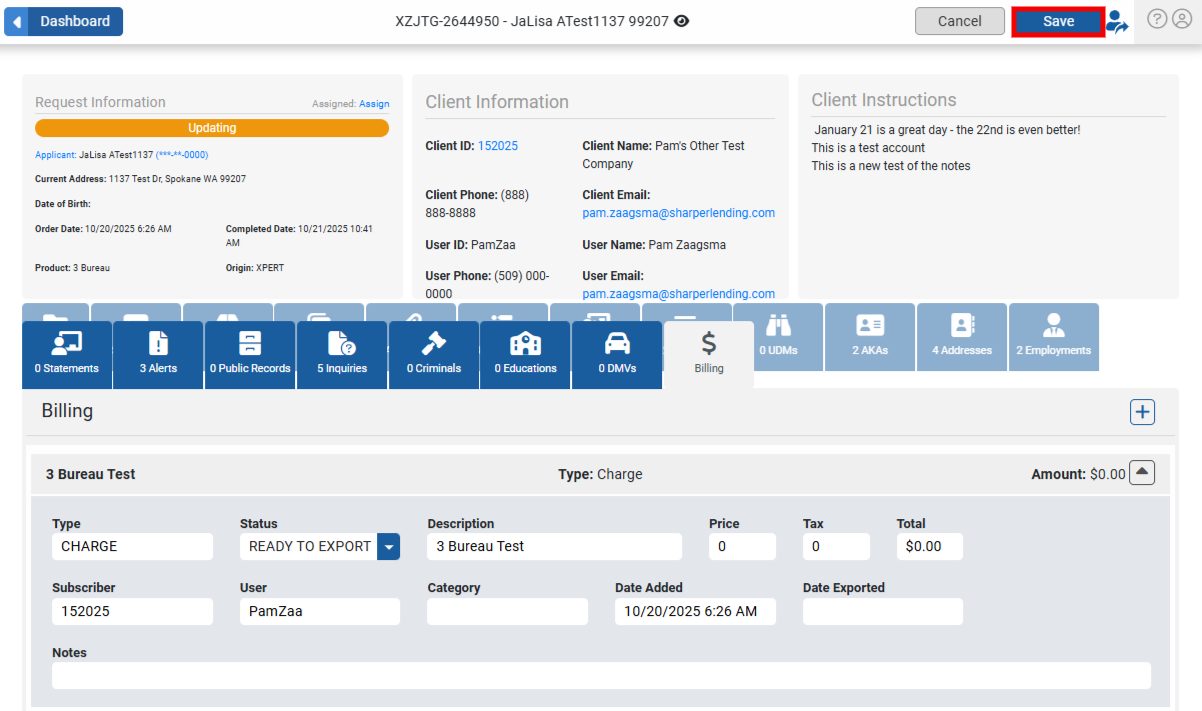
Client Invoices
Users can view different invoice types directly from the Billing tab. Client, Closed Bundle, and Combined Invoices are all accessible under the Client Invoice section. 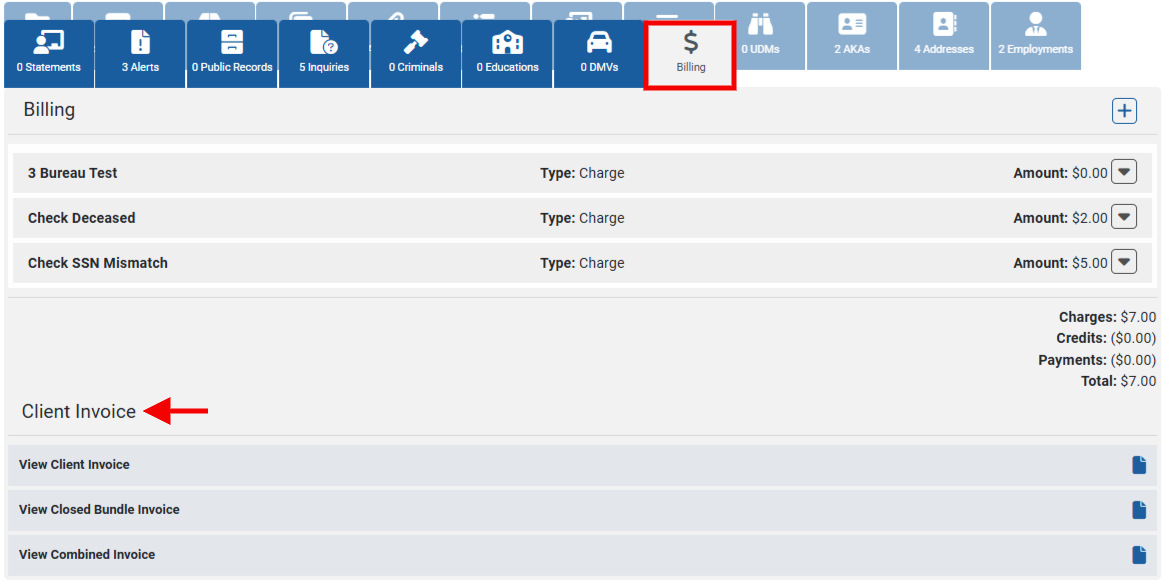 To view these different invoices, select the paper icon to the right. This will open a PDF version of the invoice.