
XpertOnline Provider (XOP) is configurable for Providers to enable an Auto-Upgrade feature on a per client basis. Performing this action aids in less manual intervention by clients when determining if a product warrants an upgrade or can remain as is. Additionally, the Auto-Upgrade feature provides clients with a snapshot of whether an applicant(s) will qualify or not, ultimately reducing costs for the applicant(s) should a Tri-Merge be unnecessary. This guide will explain how to enable this setting.
Important Note: This is an advanced-level Knowledge base article. If you have questions about these instructions, please contact our Tech Support department at Tickets@SharperLending.com.
Content Includes:
- Enable Auto-Upgrade for Clients Using Product Lists / Encompass® Interface
- Enable Auto-Upgrade for Clients Using Checkbox Products & Other LOS Interfaces
Enable Auto-Upgrade for Clients Using Product Lists / Encompass® Interface
For clients using Product Lists, and/or the Encompass® Loan Origination System (LOS), follow these instructions to have a single-bureau product in the client's Product List that will automatically evaluate the returned score, and upgrade to a tri-merge based on that threshold. This is a two-step process:
- Create a single-bureau product.
- Create the tri-merge product that triggers when the score threshold is met. The single bureau will be auto upgraded based on the applied parameters.
For all other LOS interfaces, or use of the Auto-Upgrade feature with checkbox products, see the next section below.
Step 1 - Create Single Bureau Product
From the XpertOnline Provider main dashboard, choose the Setup tab, and select Clients from the menu.
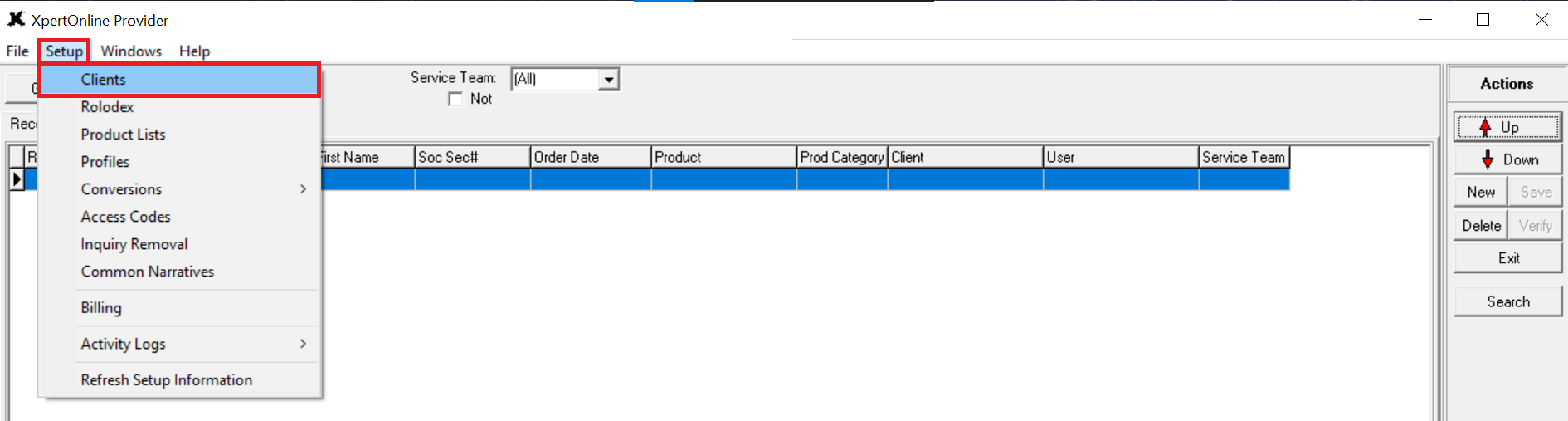
Enter the Client Subscriber ID via the Exact Search window and select OK. NOTE: you can also utilize the Advanced option to widen the results by disabling the Exact checkmark for Subscriber ID and/or Company. Once either of those fields have been provided, select OK.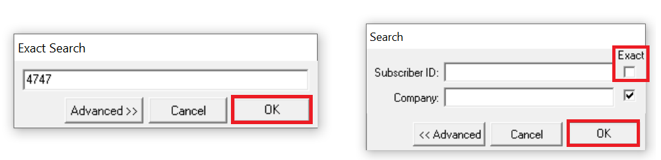
Chose the Setup tab from the Client list view, then select the Lookup Product List.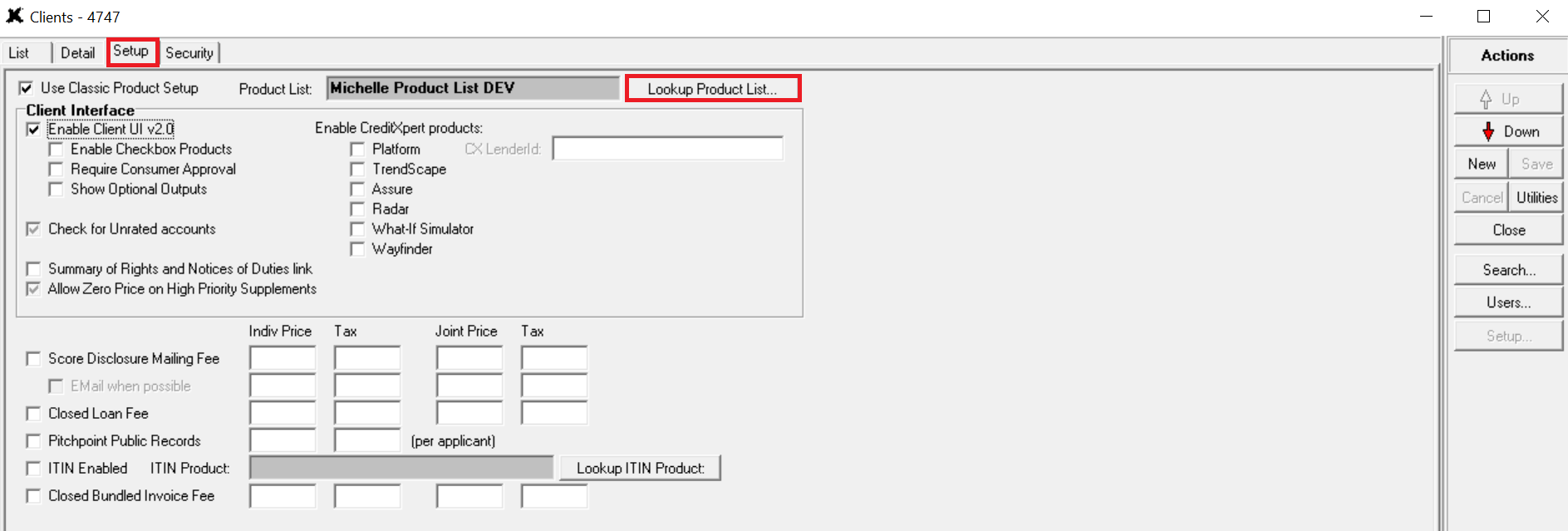
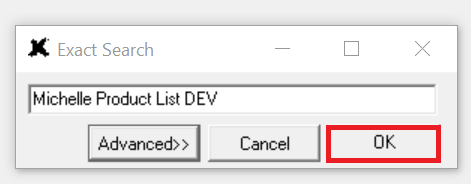
The Exact Search window will show, with the Description, i.e., Product List name automatically populated. Select OK.
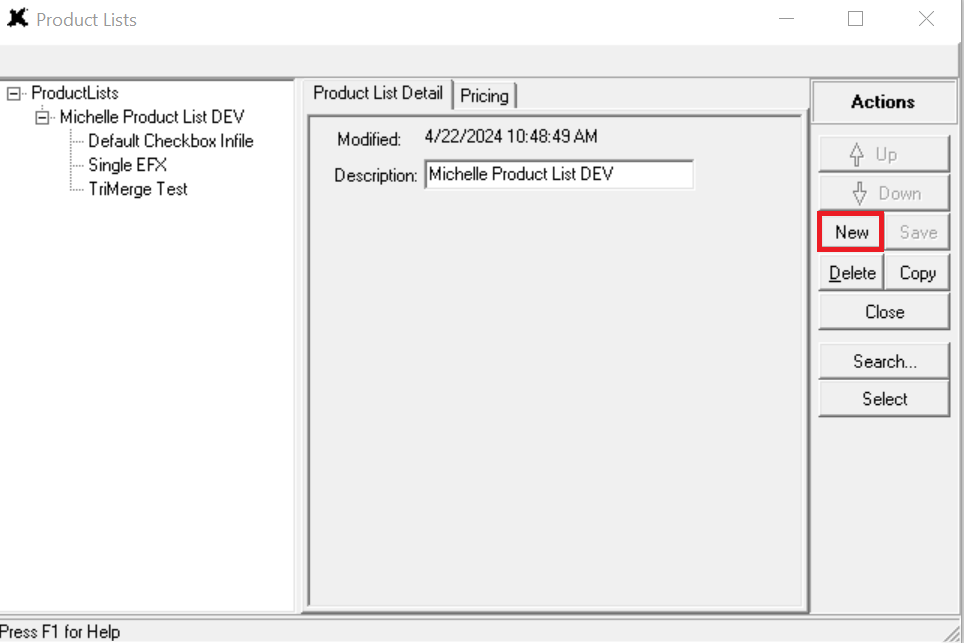
From the Product Lists screen, select New.
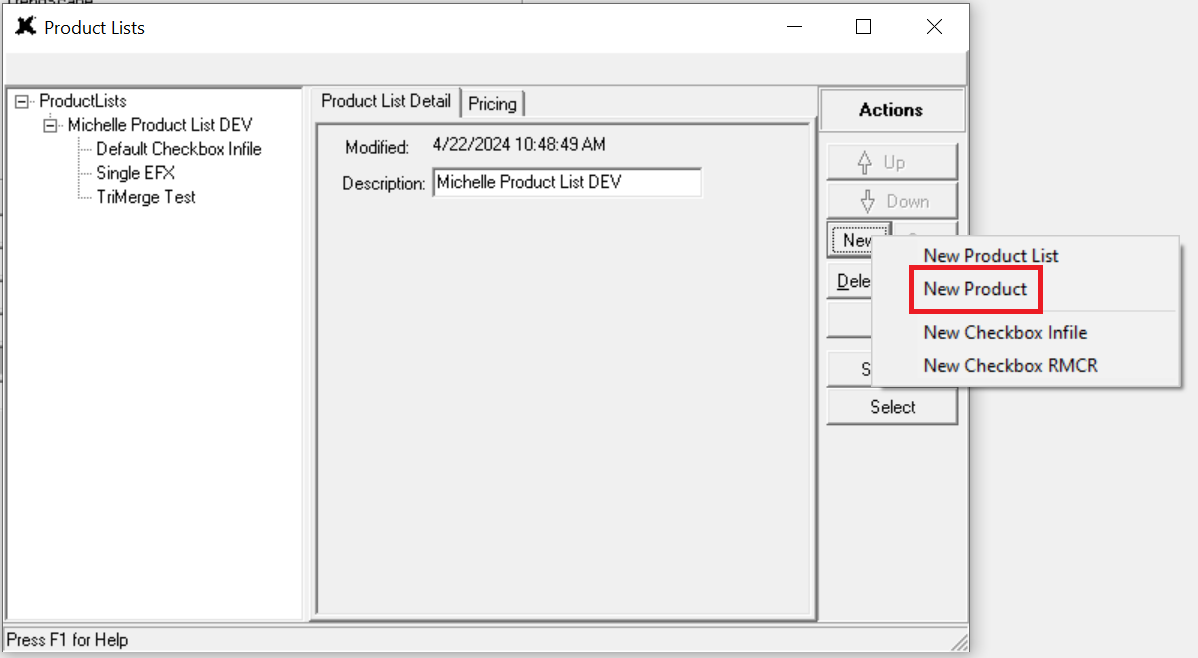
When the menu opens, choose New Product or copy from existing.
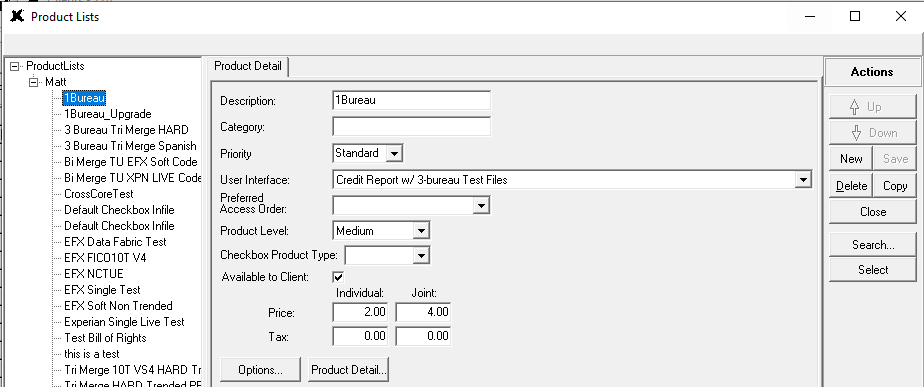
Fill out the necessary fields on the New Product screen appropriate for the client.
Enter the Description here. Take note of this product's description, as it will be necessary to configure the Tri-Merge product that the Single Bureau product will be automatically upgrade to. In the below example, the single-bureau product's name is "1Bureau."
Once the fields are completed, select Save. From the newly saved Product, select the Product Detail button towards the bottom of the screen.
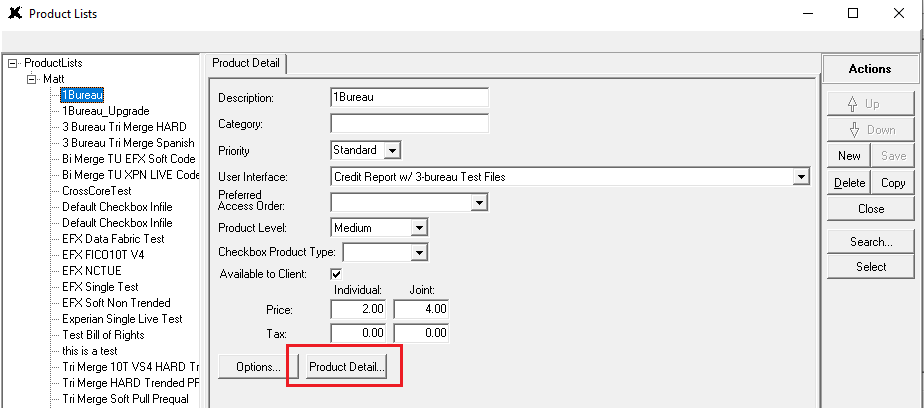
From the Product Detail screen, add the single bureau and score threshold that you want on this product. This is typically based on the bureau pricing.
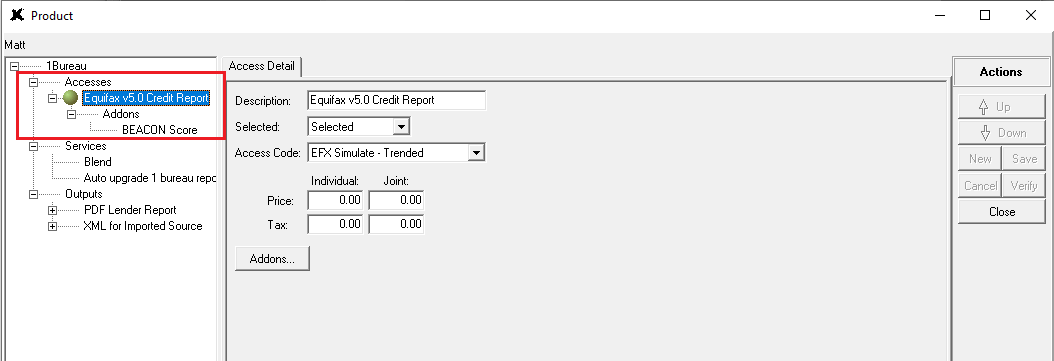
Click the Services section.
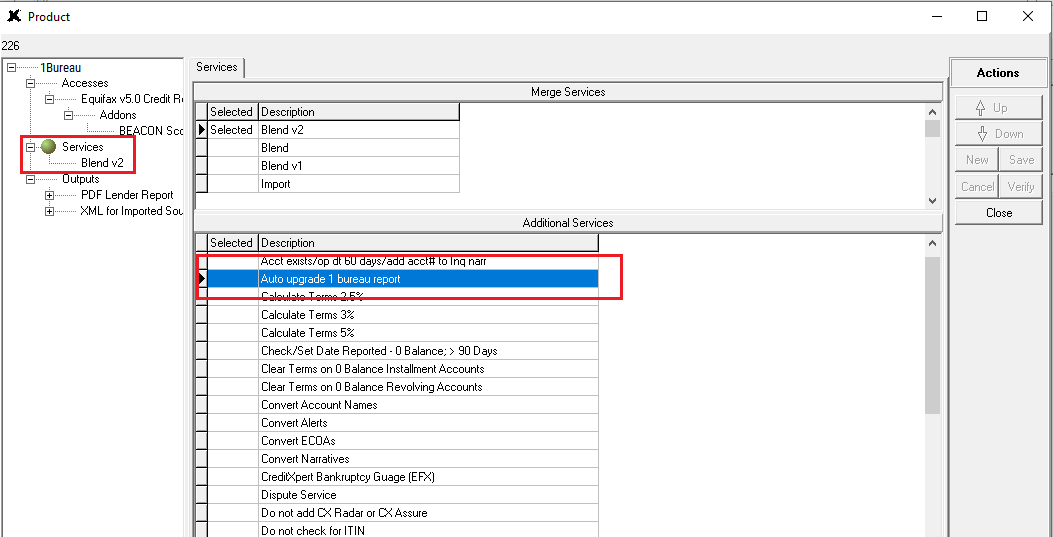
From the Service Detail screen, within the Additional Services section, locate the Auto Upgrade 1 Bureau Report service. Double click that option.
NOTE: users will be directed to the Service Detail screen.
- Make sure the service is set to SELECTED.
- In the Auto Upgrade Score Cut-Off field, enter the minimum score that the file should upgrade on. This score should be based on your lenders' Loan-Level Price Adjustments for pre-approval and should reflect the score needed to move the file forward.
Example - if the score is set at 620, then the Auto Upgrade will be triggered when the Borrower's score is returned at 620 and higher. If the borrower's score returns less than 620, the Auto Upgrade feature will not be triggered, and the file will remain a single bureau file.
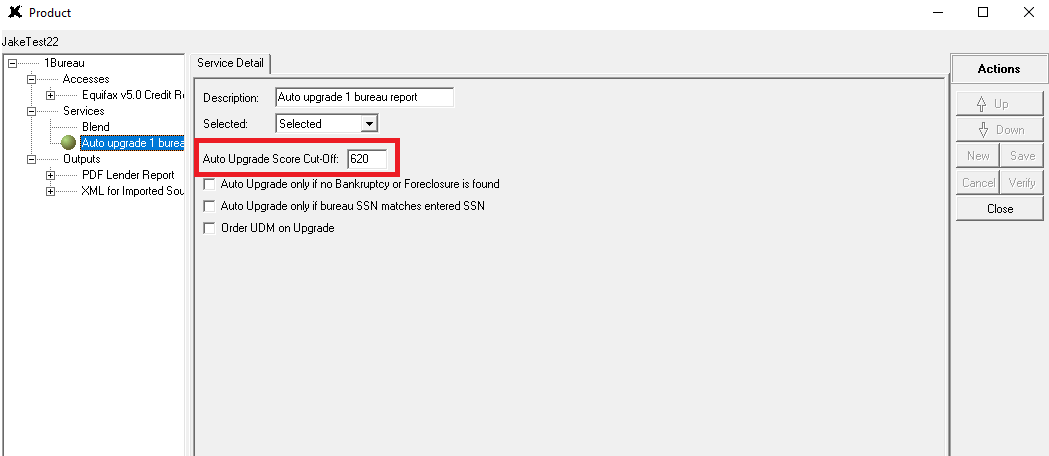
Under the Auto Upgrade Score Cut-Off section are additional options that can be set based on your preferred workflow.
- Auto Upgrade only if no Bankruptcy or Foreclosure is found: Only trigger the auto upgrade feature if the file does not contain any bankruptcy/foreclosure accounts, AND the score cut-off is equal to or higher than the score value.
- Auto Upgrade only if bureau SSN matches entered SSN: Only trigger the auto upgrade feature if the applicant's SSN matches what was entered on the order request AND the score cut-off is equal to or higher than the score value.
- Order UDM on Upgrade: When the auto upgrade is triggered, also order a UDM at the time of the upgraded product.
Enable any outputs that should be on this product. At minimum, the PDF Lender Report should be enabled. If this product will be placed through Encompass®, enable the XML For Imported Source too.
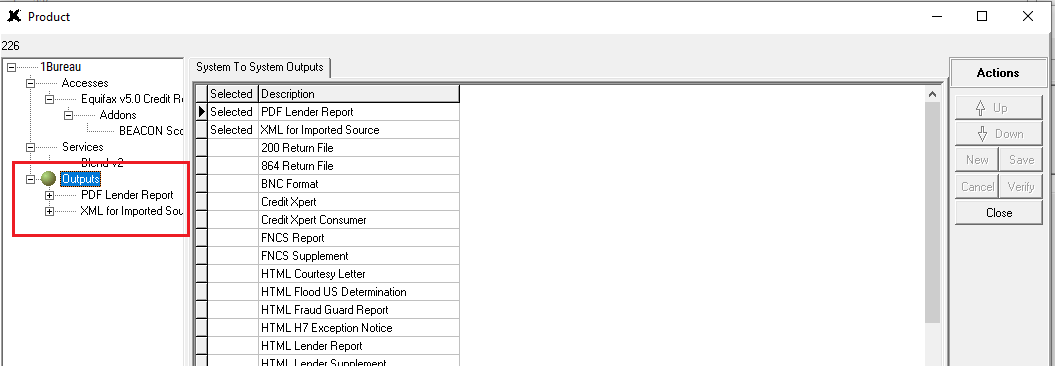
Your single bureau product is now properly configured. To complete the process, create a tri-merge product with the specific naming convention that the single bureau will upgrade to.
Step 2 - Create the Tri-Merge Product
The best way to ensure the auto upgrade product's naming convention is applied, is to copy the single bureau product via the Copy this Product option.
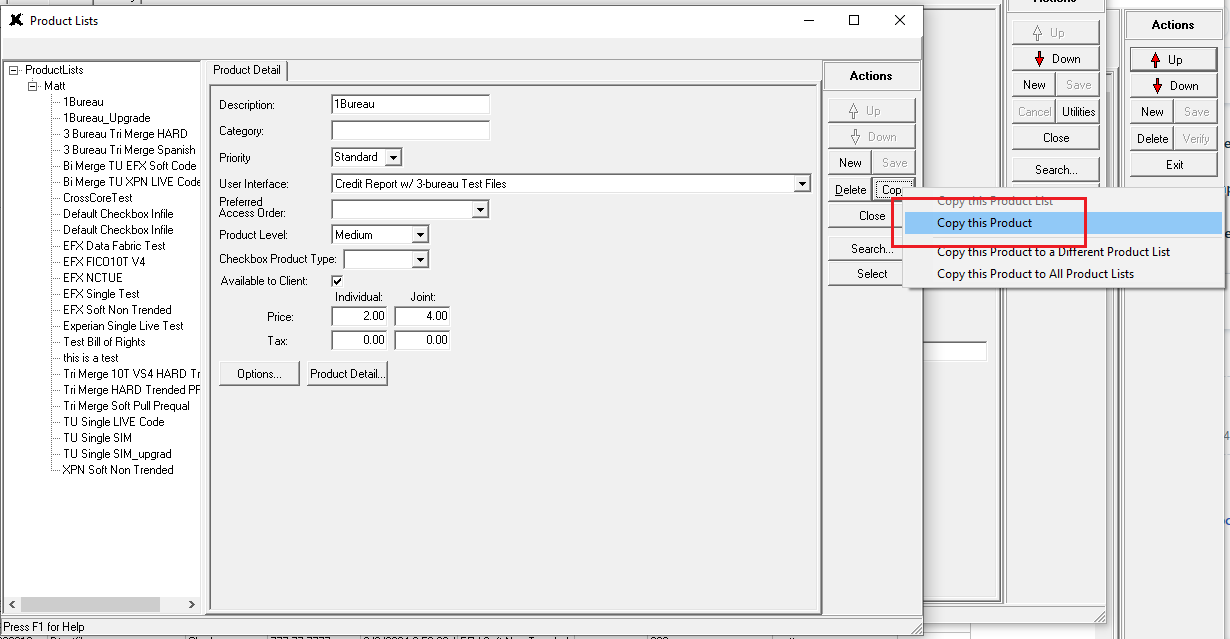
Once copied, you can rename the Description of this product to append _Upgrade to the description.
Please note that the product's Description field must be appended with _Upgrade. This specific naming convention is what tells the XpertOnline system to activate the auto-upgrade feature when this product is ordered. DO NOT ENTER A SPACE BETWEEN THE DESCRIPTION AND _Upgrade. Modify the product name by appending _Upgrade.
In the example below, the single-bureau product was named '1Bureau' and includes the Auto-Upgrade service. Therefore, users would need to name this product "1Bureau_Upgrade" to trigger the auto-upgrade feature to a tri-merge successfully.
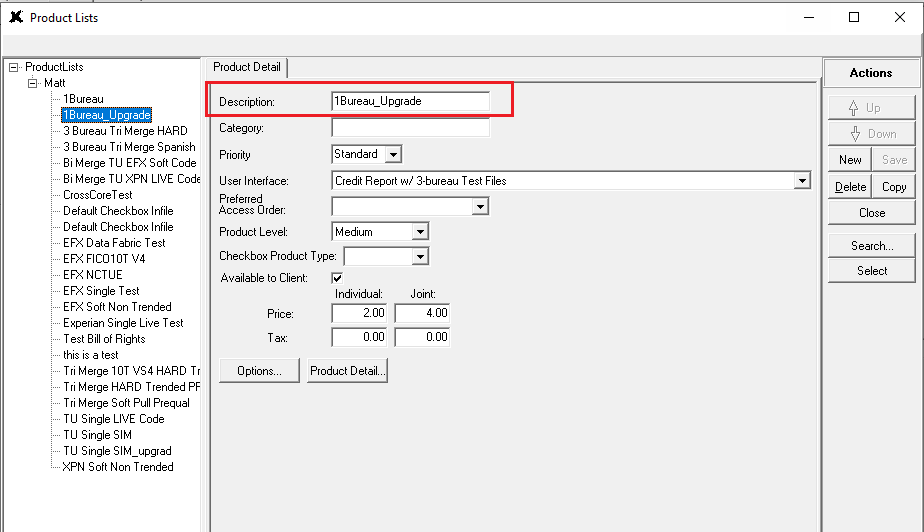
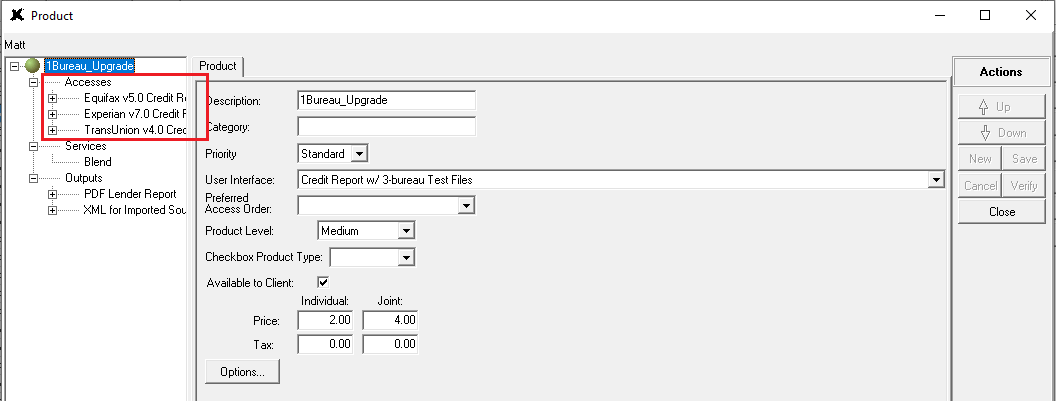
Save your changes. Once saved, click the Product Detail button on the _Upgrade product. Open the Accesses, Services, and Outputs screens.
Users may want to add the other two bureau accesses and scores to this auto upgrade product to ensure the product is a true tri-merge product.
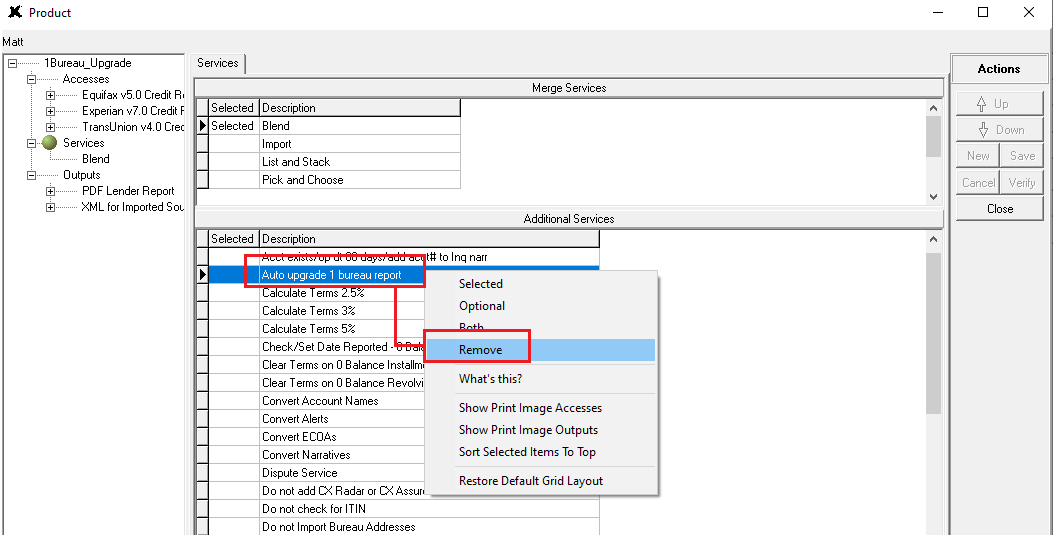
Once the tri-merge product has been applied, view the Services section. Locate the Remove option from the Auto Upgrade 1 Bureau Report service from this product. Performing this removal will ensure clients do not auto-upgrade the tri-merge product to anything else.
Keep the PDF Lender Report and XML for Imported Source outputs on this product so that the data can properly be passed to Encompass. Save your changes.
Important Note: to ensure that the single bureau data is reused on the tri-merge product, enable the Force MISMO Lookback checkbox on the client's account.
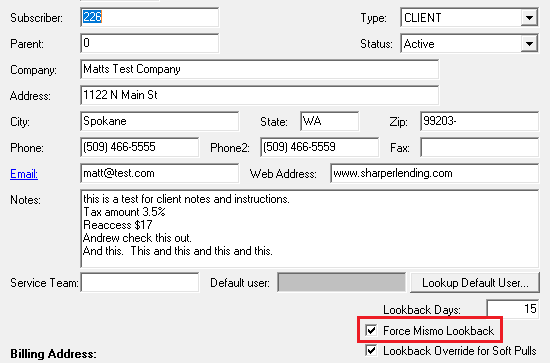
Once the tri-merge auto upgrade product has been configured, the initial single-bureau product has been pulled, and the system determines that the borrower data fits the parameters for the upgrade to occur, any existing data from the initial order will be retained and XpertOnline will automatically consolidate the returned data into a tri-merge. If the credit score is less than the Score Cut-Off, the file will remain a single bureau.
Enable Auto-Upgrade for Clients Using Checkbox Products & Other LOS Interfaces
For clients using Checkbox Products, and/or any LOS interfaces that are NOT Encompass®, follow these instructions to have a single-bureau checkbox product that will automatically evaluate the returned score, and upgrade to a tri-merge product based on the score threshold.
REMINDER: this is an advanced-level KB article. If you have questions about these instructions, please contact our Tech Support department at Tickets@SharperLending.com.
Client Setup
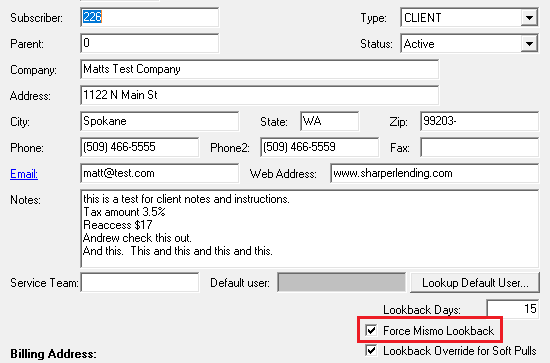
Open the client that you want to setup. View the Detail tab. Verify that the Force MISMO Lookback checkbox is checked. This will ensure that the single-bureau data is reused with the tri-merge product to avoid unnecessary bureau charges.
Access the Setup tab and ensure the client is setup for Checkbox Products, as shown below: check the Enable Checkbox Products button and Save.
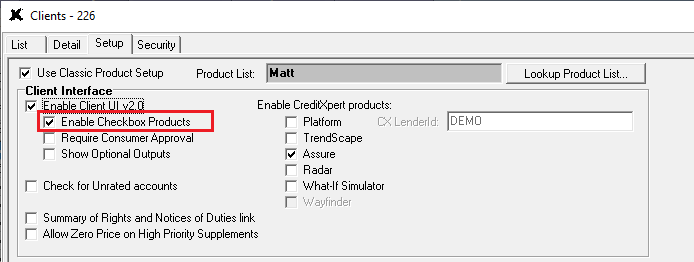
From here, access the Product Setup to complete the Auto-Upgrade feature for Checkbox Products.
Product Setup
Click the Lookup Product List button. Once the Product Lists screen load, click OK.
Once you are viewing your product list, click the New button and select New Checkbox Infile.
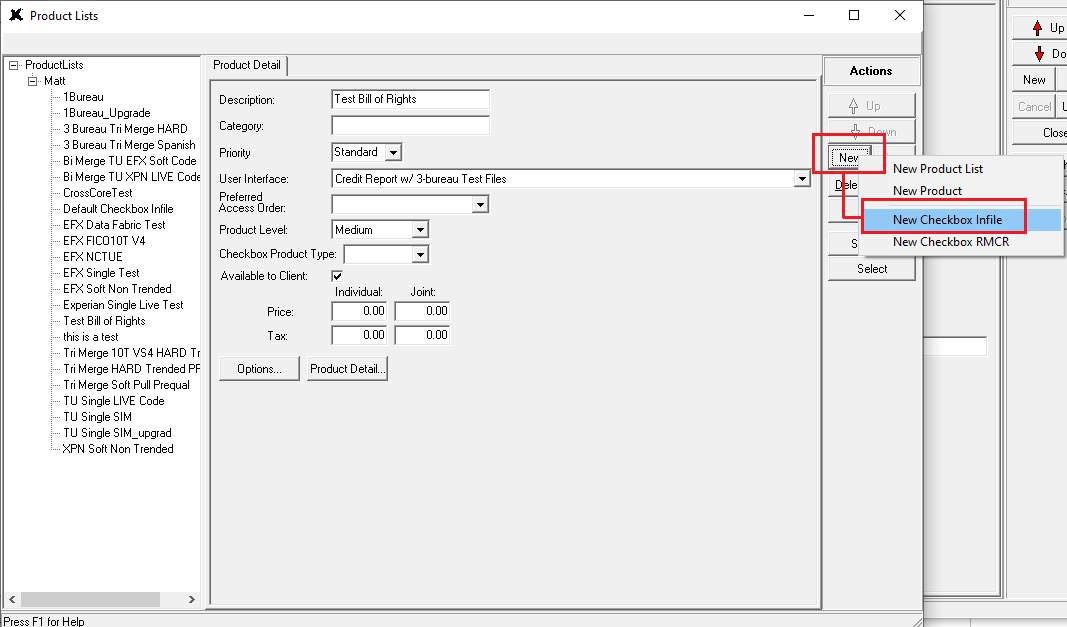
This will automatically configure the Checkbox Product for you, which includes the Product Description and the Checkbox Product Type.
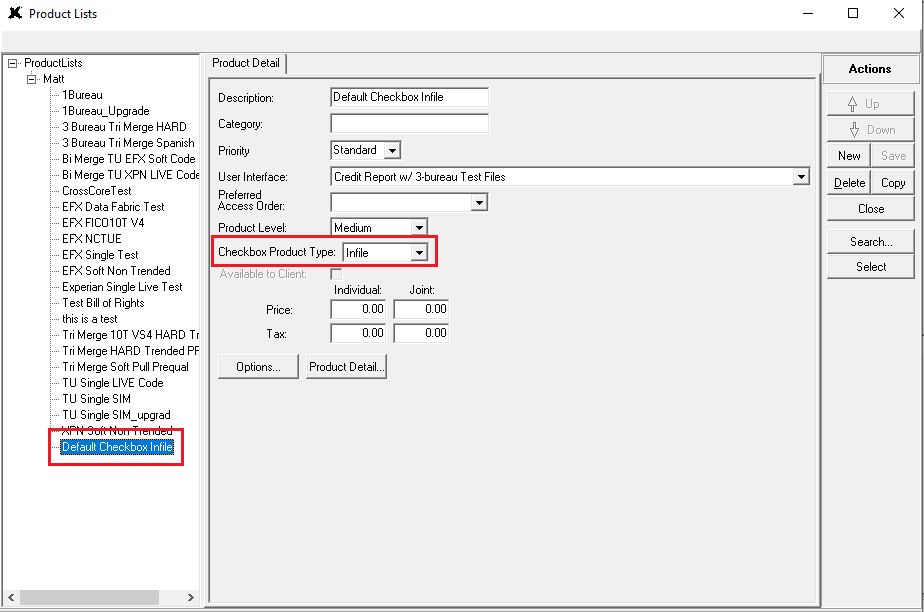
Leave the Individual and Joint Price and Tax as zero. Add pricing at the bureau and score level to ensure that the single bureau pricing and tri-merge pricing total the proper amounts.
Next, click the Product Detail button to view the Accesses, Services, and Outputs for this product.
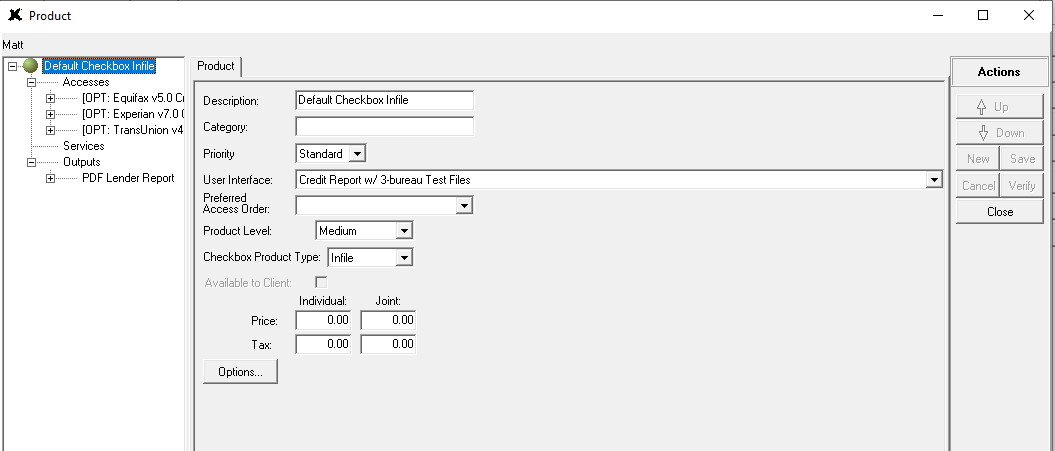
Set your pricing per-bureau and per-score as needed.
Bureau Access and Scores
- Click the Equifax v5.0 Credit Report bureau access. Keep this bureau access as Optional, select the Access Code that should be applied, and set the per-bureau access prices for Equifax.
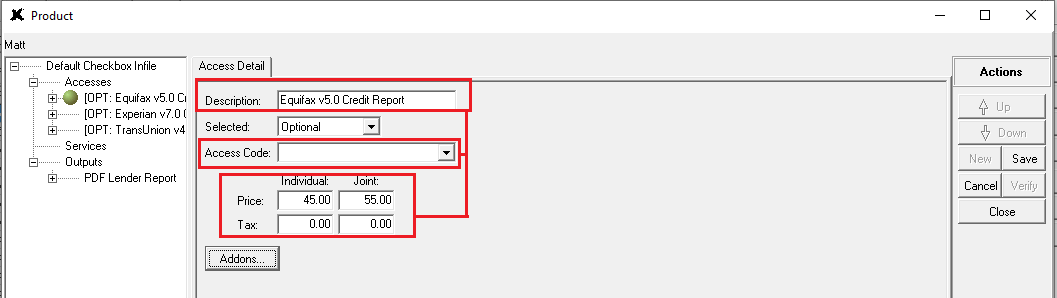
If this bureau access should always come with an EFX score, click the Addons button, then set the Beacon Score to Selected. If the score is optional, you can keep the Beacon Score as set to Optional.
Note: Since nearly all lenders want the bureau score, it will be easier for your clients to set this score as 'Selected'. This will ensure the score is included with the EFX bureau access data. You can also setup per-score pricing as well.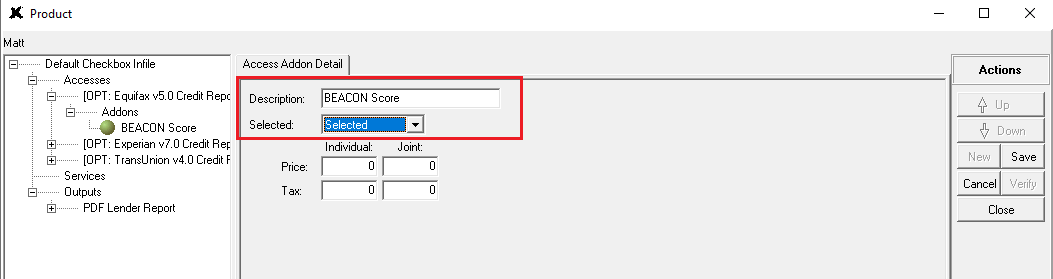
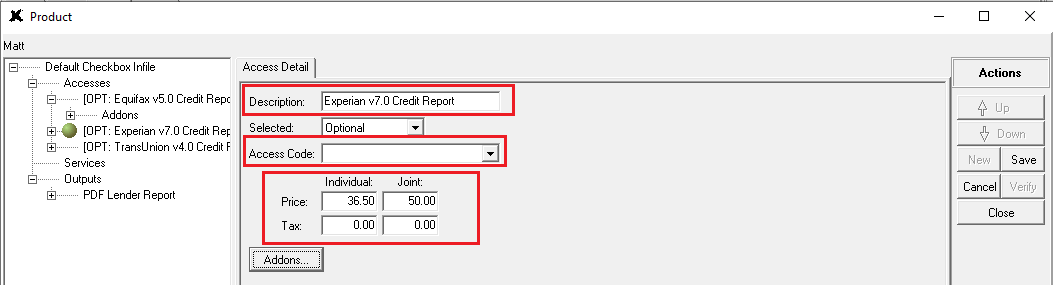
- Click the Experian v7.0 Credit Report bureau. Keep this bureau access as Optional, select the Access Code that should be used, and set the per bureau access prices for Experian.
 If this bureau access should always come with an XPN score, click the Addons button, and set the Experian/Fair Isaac Model score to Selected. If the score is optional, you can keep the Experian/Fair Isaac Model score as set to Optional.
Note: Since nearly all lenders want the bureau score, it will be easier for your clients to set this score as 'Selected'. This will ensure the score is included with the XPN bureau access data. You can also setup per-score pricing as well.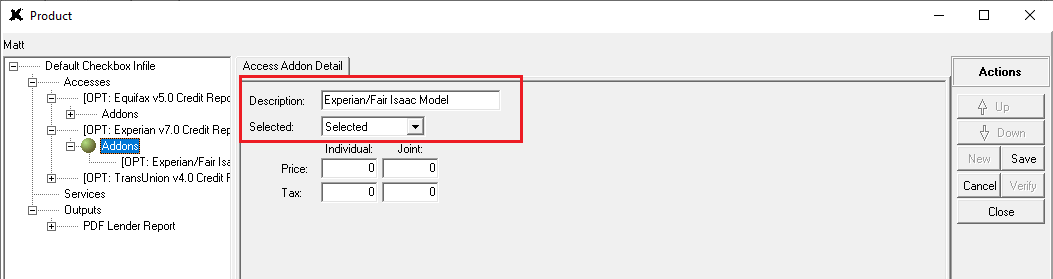
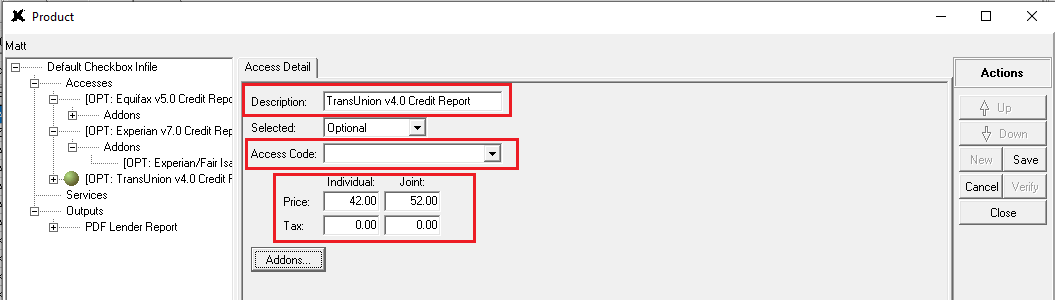
- Click the TransUnion v4.0 Credit Report bureau access. Keep this bureau access as Optional, select the Access Code that should be used, then set the per bureau access prices for TransUnion.
If this bureau access should always come with a TU score, click the Addons button, then set the FICO CLASSIC score to Selected. If the score is optional, you can keep the FICO CLASSIC score as set to Optional.
Note: Since nearly all lenders want the bureau score, it will be easier for your clients to set this score as 'Selected'. This will ensure the score is included with the TU bureau access data. You can also setup per-score pricing as well. Save your changes.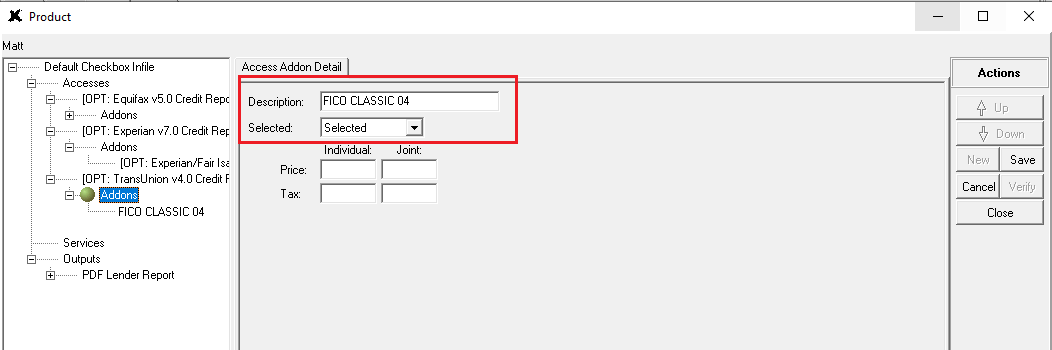
Services
Click on the Services entry, then set the Blend service to Selected.
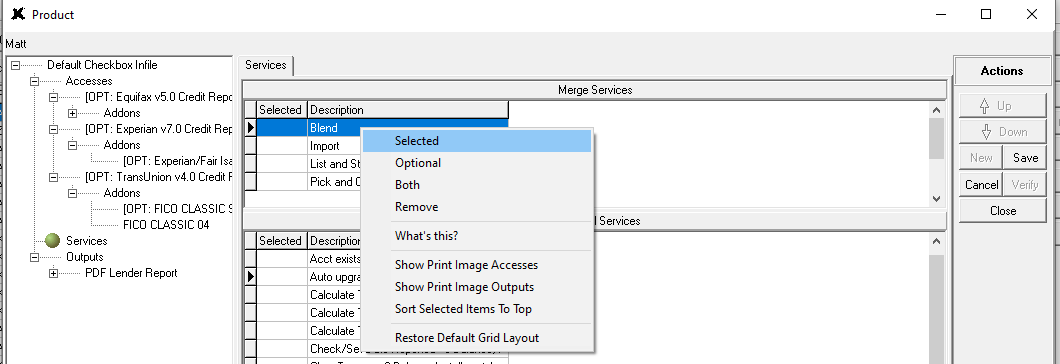
View Additional Services and double-click on the Auto Upgrade 1 Bureau Report service.
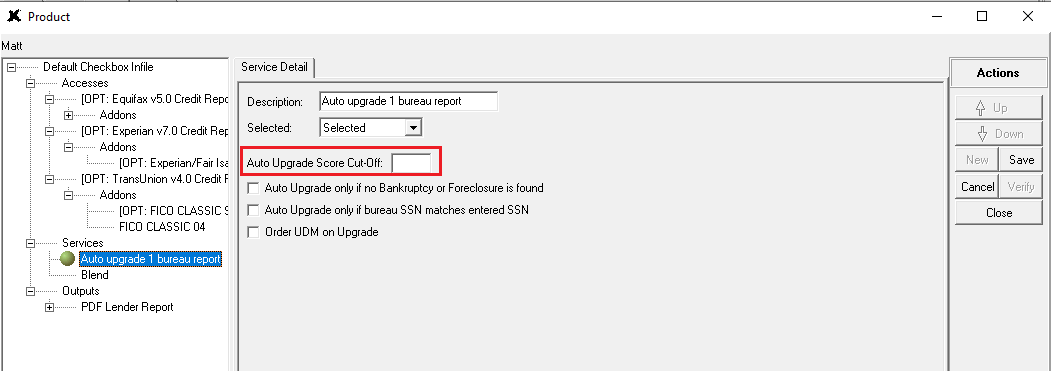
Find the Auto Upgrade Score Cut-Off setting. Enter a score value here, such as 680.
- If the single bureau score is below the Score Cut-Off, the file will remain a single bureau, and only the single bureau access price will be billed to the client.
- If the credit score on the single bureau pull meets or exceeds the value here, the system will automatically add the other two bureaus, upgrading the remaining optional bureaus to deliver a tri-merge product. The total of the three bureau access prices will then be billed to the client.
Under the Auto Upgrade Score Cut-Off section are additional options that can be set based on your preferred workflow.
- Auto Upgrade only if no Bankruptcy or Foreclosure is found: Only trigger the auto upgrade feature if the file does not contain any bankruptcy/foreclosure accounts, AND the score cut-off is equal to or higher than the score value.
- Auto Upgrade only if bureau SSN matches entered SSN: Only trigger the auto upgrade feature if the applicant's SSN matches what was entered on the order request AND the score cut-off is equal to or higher than the score value.
- Order UDM on Upgrade: When the auto upgrade is triggered, also order a UDM at the time of the upgraded product.
Outputs
We recommend that you view the Outputs for this product and set the XML for Imported Source output to Selected. This will ensure that if the product is used with an LOS, the Asset and Liability data will also be sent to the LOS.
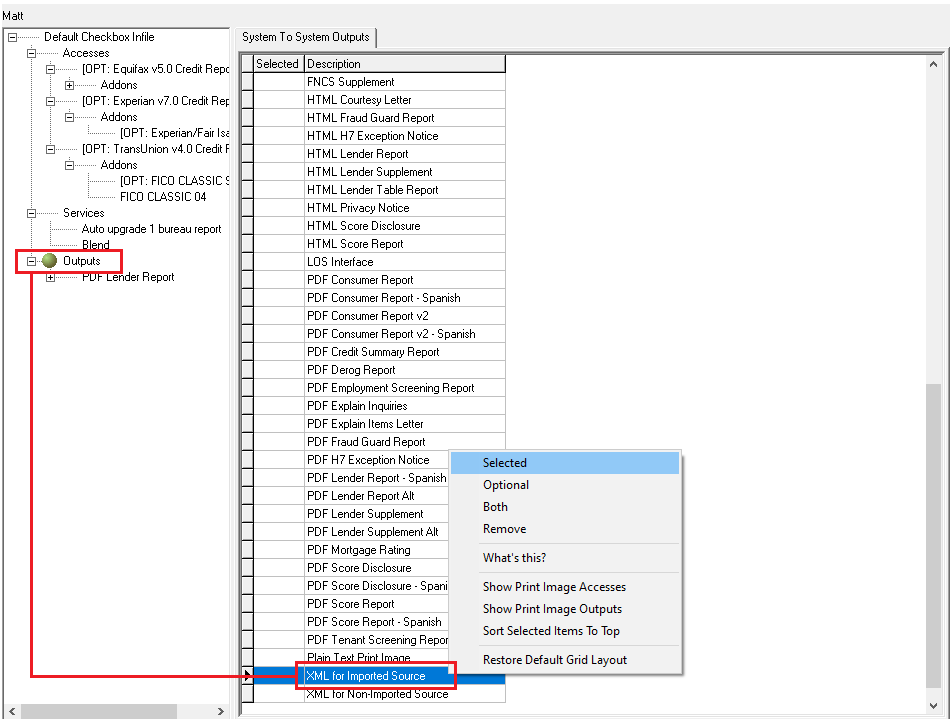
Once the Default Checkbox Infile product has been configure and the initial single-bureau product has been pulled, the system automatically determines that the borrower data fits the parameters for the upgrade to occur. Any existing data from the initial order will be retained and XpertOnline will automatically consolidate the returned data into a tri-merge product. If the credit score is less than the Score Cut-off, the file will remain a single bureau.