
Appraisal Firewall X offers lenders the ability to place, track, and obtain Automated Valuation Models (AVMs), Property Condition Reports (PCRs), and Broker Pricing Opinions (BPOs) within a single platform. These evaluation tools can be easily ordered, ensuring lenders get property valuation results fast!
Content Includes:
Property Condition Reports (PCRs)
This evaluation tool can be ordered when a traditional appraisal report is waived, while still verifying the subject property's value and condition. Most PCRs are delivered within 3-5 business days. If an appraisal report is deemed necessary, lenders can order the report directly from the existing PCR, via Order Appraisal. Additionally, Appraisal Firewall X's PCR product offering works in tandem with our Automated Valuation Model (AVMs), which is explained later in this guide.
Enable PCRs at the Division Level
Prior to placing a PCR request, you must enable the product from the Billing/Services section via Edit Settings within the division. 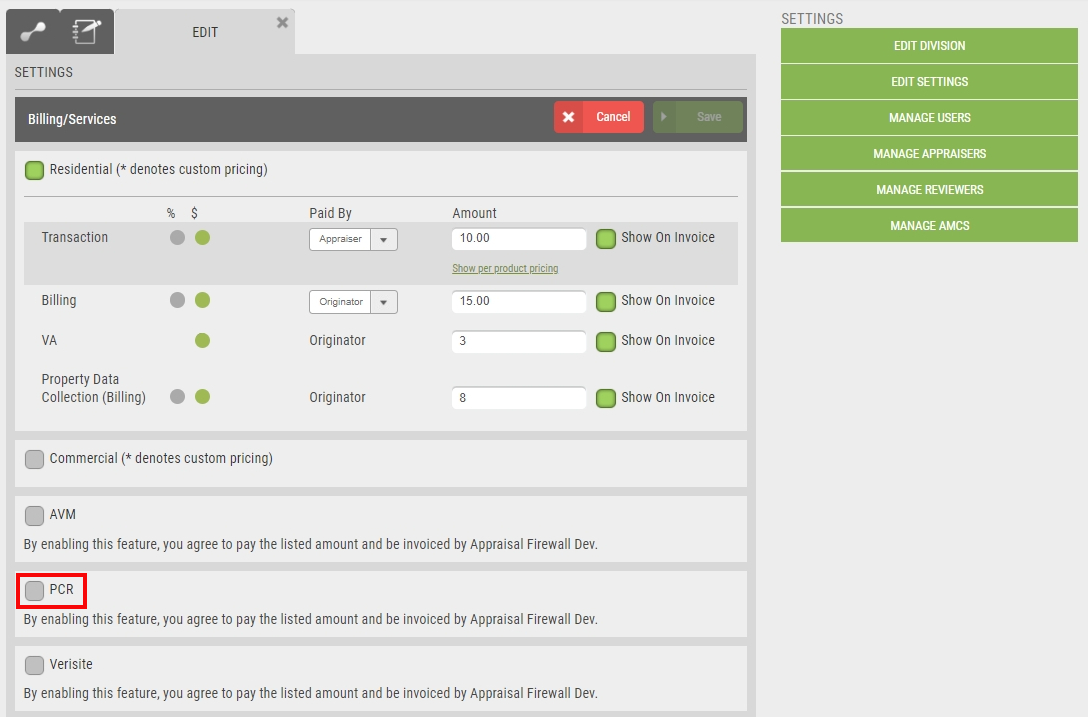
Enable the box and Save.
Placing a PCR Order
Once the product has been activated, users will see a Valuation option from the New Order slide out navigation bar. 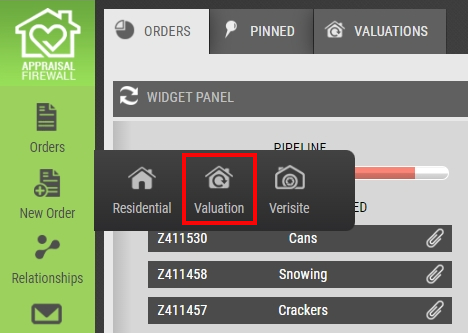
Choose Valuation to be directed to the New Order form. Users must fulfill all required fields as marked by an asterisk(*). Within the Order section, under Valuation Type, users should select PCR - Property Condition Report.
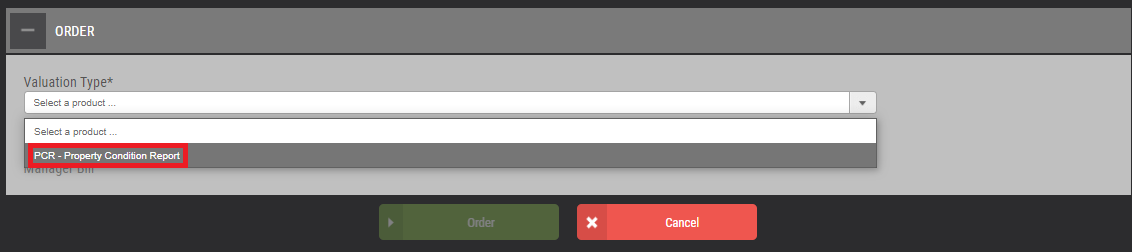
Once a green checkmark has been supplied in each section (Loan, Property, and Order), the Order button at the bottom of the screen will become enabled. Select Order to place the PCR request. PCRs typically take 3-5 business days to return and when the report has been provided by the vendor, users will be notified. The output will be accessible via the Communications Log or the Documents tab within the order.
Automated Valuation Models (AVMs)
This instant property evaluation tool is based on historical property and market data, plus verified mathematical modeling. AVMs are a great solution for certain refinance and equity products and typically return in under 30 seconds. If an appraisal report is deemed necessary, lenders can order the report directly from the existing AVM, via Order Appraisal. Additionally, Appraisal Firewall X's AVM product offerings work in conjunction with Property Condition Reports (as referenced earlier in this guide) and Verisite Collateral Data, ensuring lenders get property valuation results fast. Refer to our guide on Verisite Collateral Data for more extensive information.
Enable AVMs at the Division Level
Prior to placing an AVM request, you must enable the product from the Billing/Services section via Edit Settings within the division. 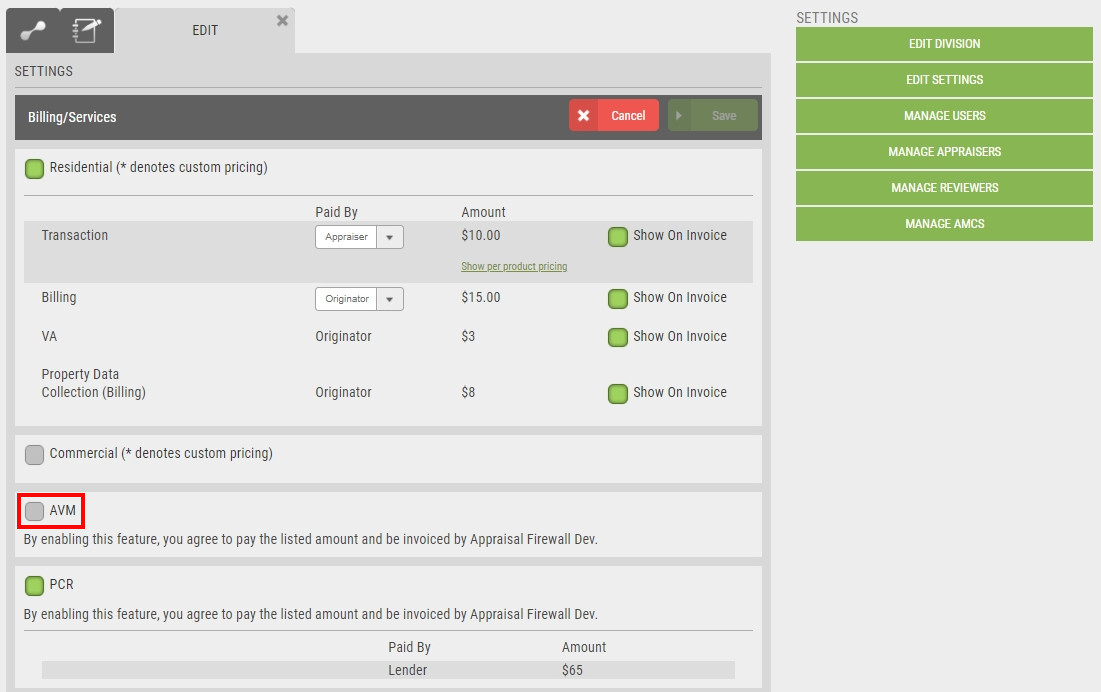
Enable the box and Save.
Placing an AVM Order
Once the product has been activated, users will see a Valuation option from the New Order slide out navigation bar. 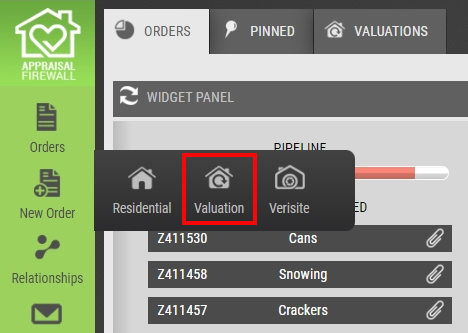
Choose Valuation to be directed to the New Order form. Users must fulfill all required fields as marked by an asterisk(*). Within the Order section, under Valuation Type, users should choose Cascade AVM. 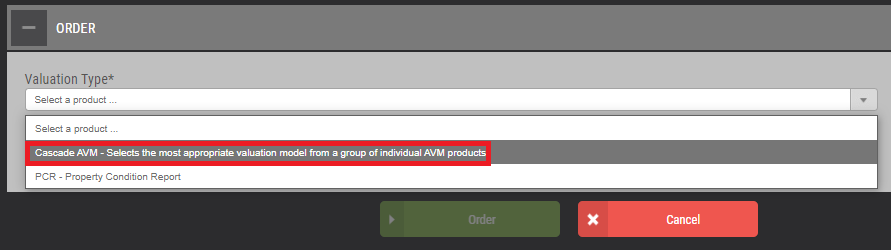
Once a green checkmark has been supplied in each section (Loan, Property, and Order), the Order button at the bottom of the screen will become enabled. Select Order to place the AVM request.
AVMs typically return within 30 seconds and when the report has been provided by the vendor, users will be notified. The output will be accessible via the Communications Log or the Documents tab within the order.
Broker Pricing Opinions (BPOs)
This valuation product uses current local market data, recent images, subject property condition verification, plus estimated market values as an alternative to full appraisal orders. Through local agents/brokers to conduct the property assessment and analysis, BPOs may offer borrowers a quicker and cost-efficient appraisal alternative, while meeting the loan origination requirements.
Enable BPOs at the Division Level
Prior to placing a BPO request, you must enable the product from the Billing/Services section via Edit Settings within the division. Select the box adjacent to BPO to enable the product for ordering.
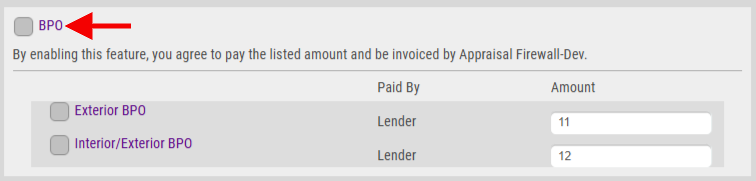
To ensure BPO products are available, select one or both BPO products. NOTE: Only Managers have the ability to change the product fee amount. Administrators are restricted from editing the fee.
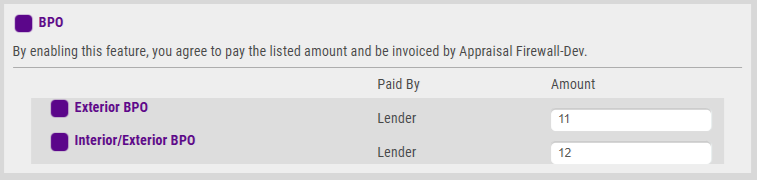 To ensure the product is set up for ordering, select Save at the top of the Billing/Services section.
How to Place a BPO
From the New Order navigation menu, clients must select the Valuation product type. 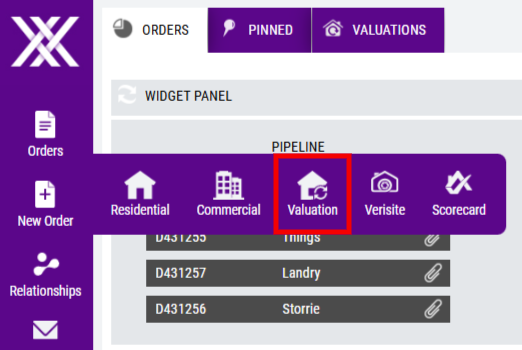 NOTE: when logged in as a Manager User, Managers must select a lender first before launching the new order screen. Fill out all required fields on the order form, as indicated by an asterisk (*). Within the Order section, any BPO products enabled on the division will be listed on the Valuation Type dropdown menu.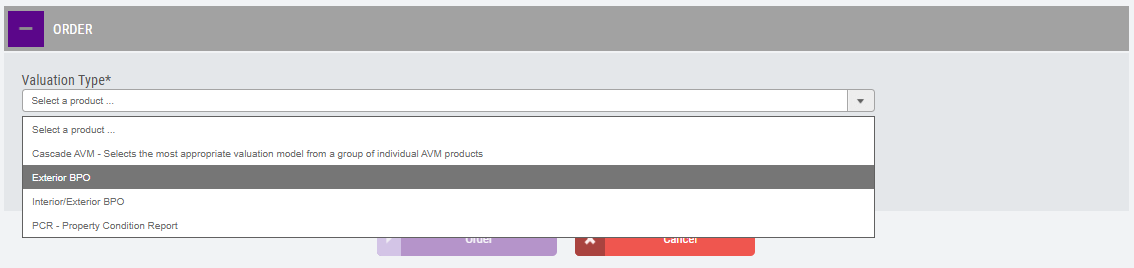
Once a green checkmark has been supplied in each section (Loan, Property, and Order), the Order button at the bottom of the screen will become enabled. Choose the appropriate product and select Order to place the order.
BPOs typically return within 5-7 days and when the report has been provided by the vendor, users will be notified. The output will be accessible via the Communications Log or the Documents tab within the order.