
Within the Setup feature of the Navigation Menu, Providers can create, edit, and remove a default list of Billing Descriptions for users to apply within the Billing tab while working in a file. This guide explains how to perform these options.
Content Includes:
- Create a New Billing Description
- Edit an Existing Billing Description
- Remove an Existing Billing Description
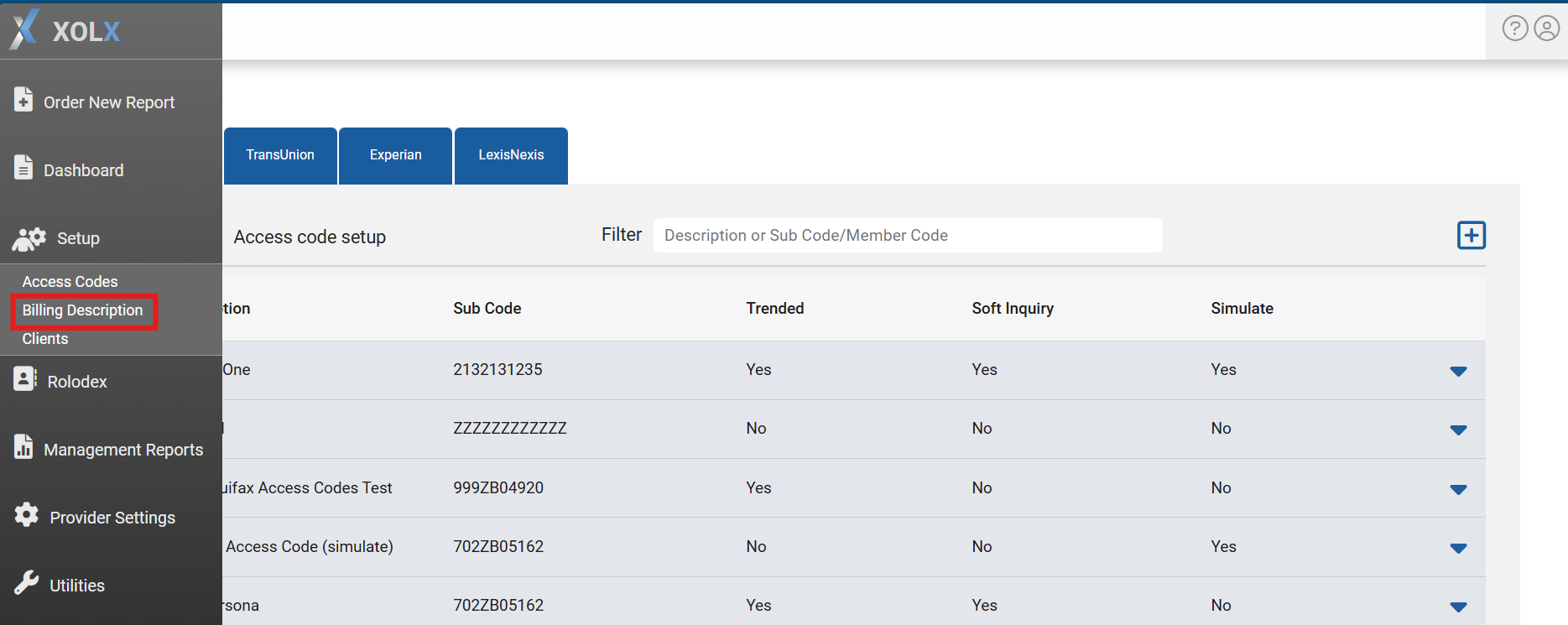
Create a New Billing Description
Choosing Billing Description will open a new screen which will list any existing pre-defined billing descriptions. 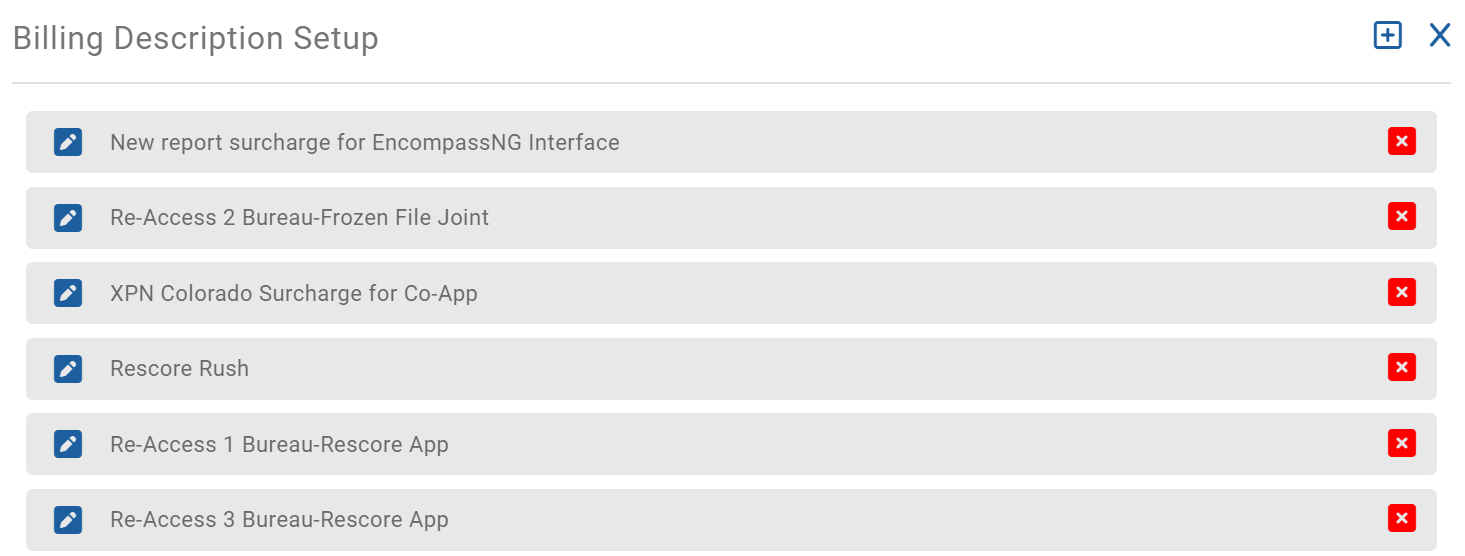
To create a new description, select the + button towards the upper right. 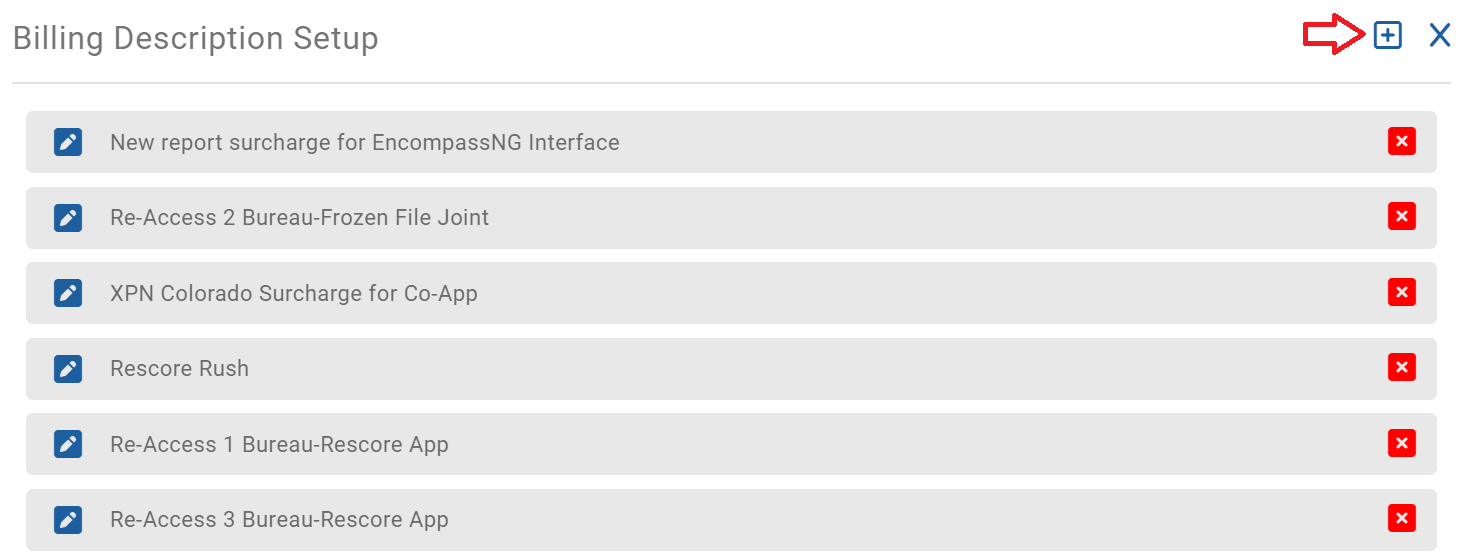 A new row at the top will be exposed for Providers to create a description. This row is automatically in edit mode.
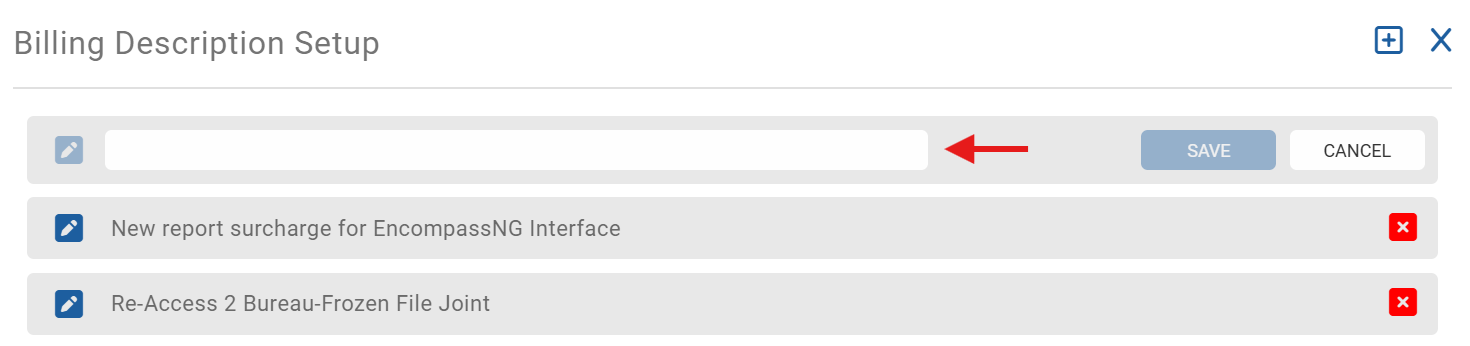
Once the description has been provided, select SAVE. The new description will be added to the pre-defined list. Selecting CANCEL will return to the previous screen.
Edit an Existing Billing Description
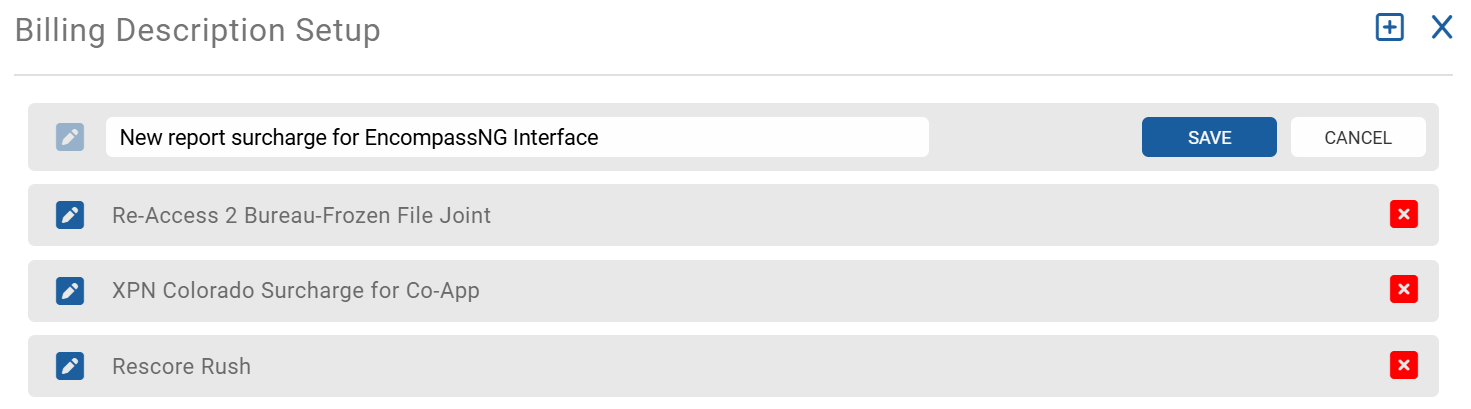
To edit an existing Billing Description, select the pencil icon to the left of description. 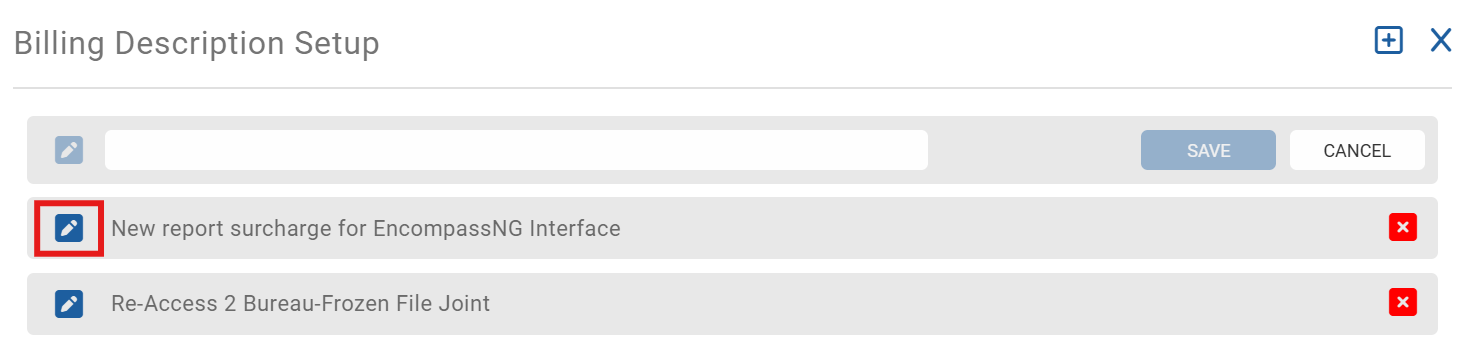 This will open the description to an edit mode. Make the necessary edits and SAVE the changes.
Remove an Existing Billing Description
To remove and existing Billing Description, select the red 'X' along the right side. 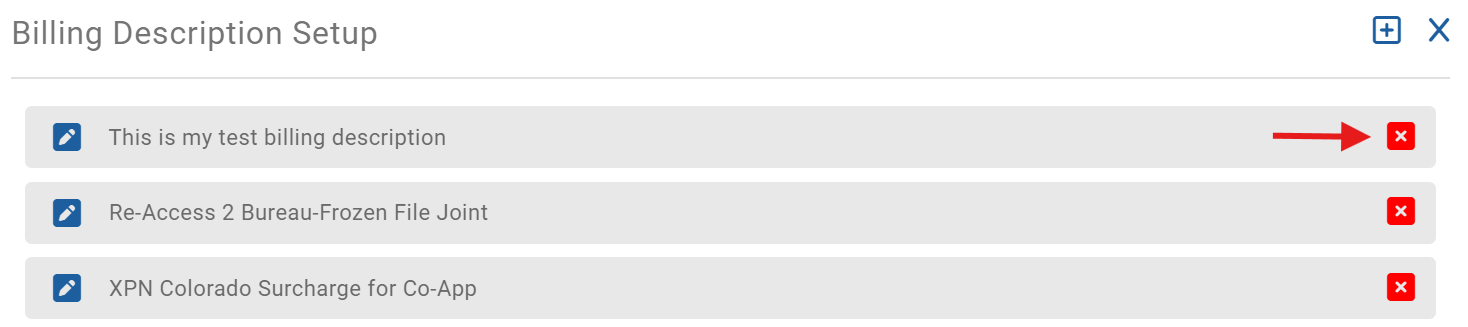
This will remove the billing description from the list.