
XpertOnline offers a robust library of management tool resources to aggregate and track your clients' data metrics. Among these reports offered, is our Score Comparison Management Report. This walkthrough guide will explain how to generate and utilize the data within the report.
Content Includes:
- How to Generate the Score Comparison Management Report
- Understanding the Score Comparison Management Report
How to Generate the Score Comparison Management Report
- Users will need to access the external link to the report HERE.
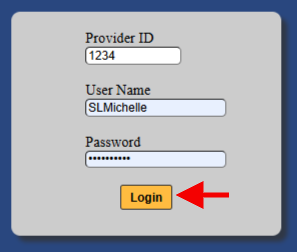
- From the Sign In page, enter your Provider ID, Username, and Password.
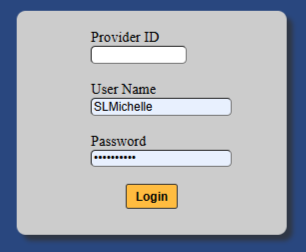
- Once the credentials have been supplied, select the Login button.
- Next, enter the Subscriber ID of your Client you want to generate the report to review. NOTE: to include Child Clients in the report, be sure to enable the Include Child Clients box.
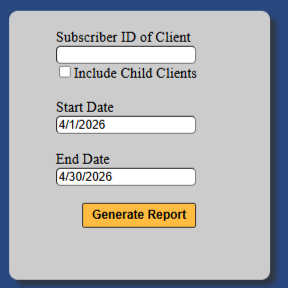
- Select a date range. By default, the previous month's date range will be populated in the Start and End Date fields. Once completed, click the Generate Report button.
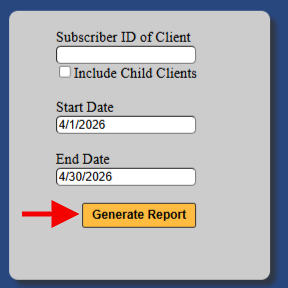
- The report will download a .CSV file to review.
Understanding the Score Comparison Management Report
Orders placed within the selected date range will be displayed within the body of the report. Each order will display scores returned by bureau product ordered and by applicant. This provides a quick snapshot of the applicants' scores in a side-by-side manner, so users can review how widely the scores may range between the bureaus. Below is an example of how this information is displayed.
